So, you’ve got your hands on a cool new desktop application, and now you’re itching to install it and explore its features, right? Let’s get started and bring that application to life on your computer!
Step 1: Downloading the Application
First things first, you need to get your hands on the application’s installer file. Usually, you can find this file on the developer’s website or a trusted software distribution platform. Look for a prominent “Download” button or link, and click on it to begin the download.
Step 2: Locating the Installer File
Once the download is complete, navigate to the location where the installer file was saved. It’s often in your computer’s “Downloads” folder, but you can choose a different location if you prefer. Finding the file is crucial as we’ll be running it in the next step.
Step 3: Running the Installer
Now that you have the installer file, it’s time to run it! Double-click on the file to initiate the installation process. You may encounter a security prompt or a User Account Control (UAC) dialog asking for permission. Go ahead and grant the necessary permissions to proceed.
Step 4: Following the Setup Wizard
Great! The installer should now launch a setup wizard that will guide you through the installation process. Pay attention to the instructions and options presented to you. Feel free to customize any settings or choose additional features if available. Don’t worry; the default settings are usually suitable for most users.
Step 5: Accepting the Terms and Conditions
As with any software installation, you’ll likely encounter a Terms and Conditions or End-User License Agreement (EULA) screen. Take a moment to read through the terms if you wish, then click the checkbox to indicate your agreement. After that, click the “Next” or “Install” button to continue.
Step 6: Selecting the Installation Location
In some cases, you’ll be asked to choose the destination folder where the application will be installed. By default, the installer selects an appropriate folder for you, but you can change it if needed. Once you’re satisfied with the location, proceed to the next step.
Step 7: Waiting for the Installation
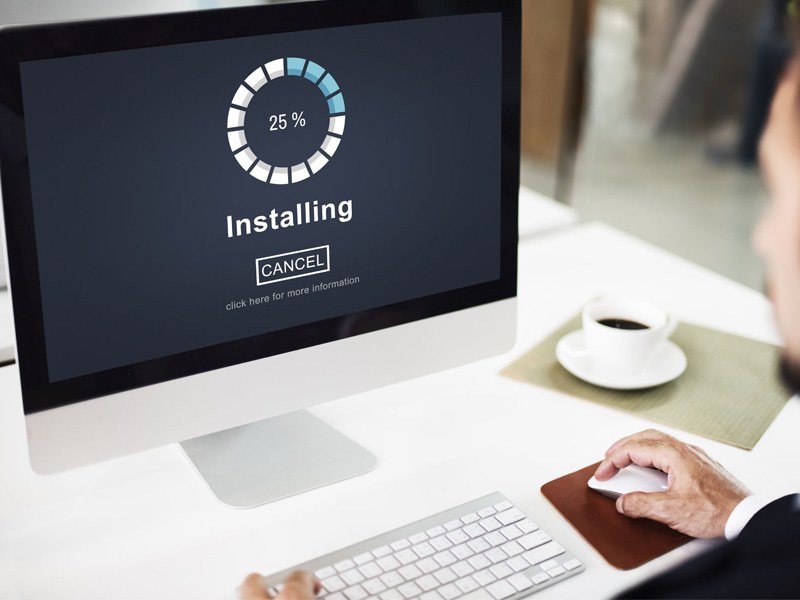
Sit tight and let the installer do its magic! Depending on the size and complexity of the application, the installation process may take a few moments. You might see a progress bar or an animated indicator to keep you informed about the installation progress.
Step 8: Launching the Application
Hooray! The installation is complete. Look for an option to launch the application immediately after installation. If not, don’t worry! You can usually find a shortcut icon on your desktop or in the Start menu. Click on it to open your newly installed desktop application.
 DINOLABS